How to Choose the Right Gaming Motherboard in 2026
Learn how to choose a gaming motherboard in 2026. Compare CPU sockets, chipsets, DDR4 and DDR5, ATX sizes, VRMs, M.2 slots, networking and BIOS support.
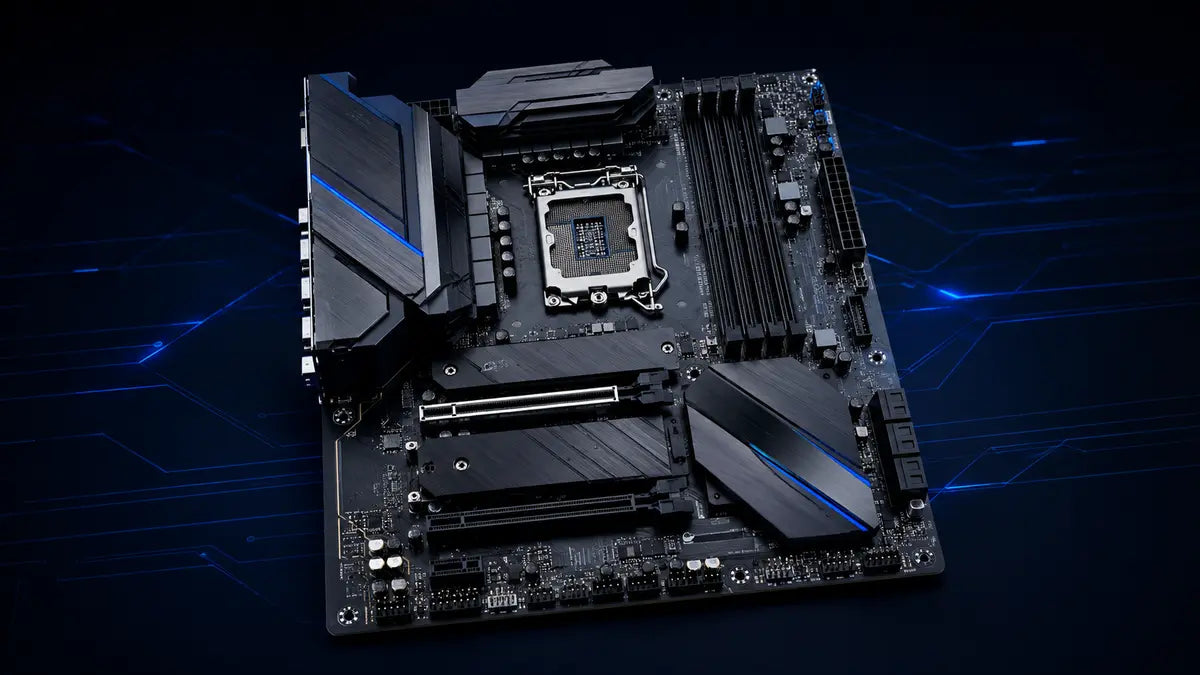
The motherboard is the compatibility map for your entire PC. It determines which processor and memory generation you can use, how many drives and expansion cards fit, which ports are available and how practical future upgrades will be. The best motherboard is not automatically the most expensive one—it is the board that supports every required feature without paying for extras you will never use.
What does a motherboard change?
A motherboard usually does not create a large frame-rate difference when the same CPU and GPU run within specification. Its value appears in compatibility, sustained power delivery, storage layout, rear I/O, networking, fan control, troubleshooting features and upgrade options.
Compatibility
Socket, chipset, BIOS, memory generation and form factor must all match the rest of the build.
Connectivity
USB, networking, audio, display outputs, M.2 slots and internal headers vary widely.
Expansion
Slot spacing, lane sharing and physical clearance determine what you can add later.
Choose the CPU socket before the chipset
The processor must physically and electrically match the motherboard socket. In 2026, new AMD gaming builds commonly use AM5, while Intel’s newer desktop platform uses LGA1851. AM4 and LGA1700 systems remain relevant for upgrades and value-focused builds, but you must verify the exact CPU, board model and BIOS support.
| Decision | Why it matters | What to check |
|---|---|---|
| Socket | Defines the compatible processor family. | Exact CPU model and motherboard CPU-support list. |
| Chipset | Influences expansion, overclocking features, USB and storage options. | Features you actually need, not just the tier name. |
| BIOS version | A supported socket does not guarantee every CPU works with every firmware version. | Minimum BIOS listed for the chosen processor. |
Choose the CPU for your gaming and workload needs, then narrow motherboards to the compatible socket and feature set. Our gaming CPU guide can help with the first step.
DDR4 or DDR5: the board decides
DDR4 and DDR5 use different electrical standards and keyed slots. A motherboard supports one generation or the other; they cannot be mixed or forced into the wrong slot. Check maximum capacity, supported speeds, number of DIMM slots and whether the memory kit appears on the board’s validation list when targeting high speed or capacity.
DDR4 can still make sense
Keeping compatible memory can lower the cost of an AM4 or selected LGA1700 upgrade.
DDR5 is the modern path
AM5, LGA1851 and many newer boards use DDR5 with higher bandwidth and current platform support.
Read our RAM guide for capacity, speed, latency, XMP and EXPO planning.
Physical layoutATX vs microATX vs Mini-ITX
| Form factor | Best for | Typical compromise |
|---|---|---|
| ATX | Full-size gaming builds with several expansion and storage options. | Requires a compatible mid-tower or larger case. |
| microATX | Compact value builds that still need multiple DIMM and M.2 slots. | Fewer PCIe slots and sometimes fewer premium onboard features. |
| Mini-ITX | Small-form-factor systems where space is the main priority. | Usually two DIMM slots, fewer expansion options and tighter cooling access. |
A smaller board can fit in a larger compatible case, but a larger board cannot fit in a smaller case. Also check front-panel connectors, radiator clearance and GPU thickness—not only the board dimensions.
VRM and CPU power delivery
The voltage-regulator module supplies controlled power to the processor. A well-designed VRM with adequate heatsinking helps a high-power CPU maintain expected boost behavior without excessive temperatures. Entry-level processors rarely require an extreme board, while top-tier CPUs under long rendering or productivity loads deserve closer attention to power delivery and airflow.
PCIe slots, M.2 sockets and lane sharing
Count what you need now and what you may add later: graphics card, capture card, sound or network adapter, NVMe SSDs and SATA drives. A slot can be physically long while operating with fewer electrical lanes. Installing an M.2 drive can also disable or reduce another slot or SATA port on some boards.
| Feature | Questions to ask |
|---|---|
| Main PCIe slot | Does it support the intended GPU, and is there room around a thick cooler? |
| Secondary slots | Will the GPU block them? How many lanes do they receive? |
| M.2 sockets | Which PCIe generation and lengths are supported? Are heatsinks included? |
| SATA ports | Are any disabled when specific M.2 sockets are populated? |
Rear I/O, networking, audio and internal headers
Rear USB
Count fast Type-A and Type-C ports for controllers, storage, audio, cameras and accessories.
Networking
Choose the Ethernet speed and Wi-Fi/Bluetooth support your network and peripherals can use.
Internal headers
Match front USB-C, USB 3, fan, pump and lighting headers to the case and cooling system.
Also check rear audio outputs, optical audio if required, BIOS Flashback, diagnostic LEDs, clear-CMOS access and display outputs. Motherboard display outputs work only when the installed processor includes compatible integrated graphics.
Firmware readinessBIOS support and update features
Consult the manufacturer’s CPU-support list before purchase. If a processor needs a newer BIOS than the board may ship with, a flash-without-CPU feature can simplify setup. After assembly, update firmware only when needed for compatibility, security or a relevant stability fix, and follow the exact manufacturer procedure.
Two models using the same chipset can have very different VRMs, ports, slot layouts, networking, audio, firmware tools and warranties.
How to choose the right motherboard
Select the processor
Record its socket, memory support and minimum BIOS version.
Choose the memory generation
Confirm DDR4 or DDR5, capacity target and DIMM-slot count.
Match the case
Choose ATX, microATX or Mini-ITX and verify mounting support.
List drives and cards
Count M.2, SATA and PCIe needs, including future additions.
Audit external ports
Count USB-C, USB-A, network, audio and display connections.
Match cooling headers
Plan CPU fans, case fans, pumps and any controllers.
Review power delivery
Use exact-model testing when pairing a demanding processor.
Verify BIOS recovery tools
Flashback and diagnostic LEDs can make first boot much easier.
Shop compatible sockets, form factors, memory generations and connectivity.
View motherboards →Related guideChoose the right gaming CPUCompare platform, core count, gaming performance and upgrade options.
Read the CPU guide →Related guidePlan your system memoryChoose capacity, DDR generation, speed, latency and memory profile.
Read the RAM guide →Gaming motherboard FAQ
Does a more expensive motherboard increase FPS?
Usually not by much when both boards run the same CPU and GPU correctly. Premium boards mainly add connectivity, expansion, power-delivery capacity, firmware tools and build quality.
Can DDR4 fit in a DDR5 motherboard?
No. The standards use different electrical designs and keyed slots.
Can I install a microATX board in an ATX case?
Usually yes when the case lists microATX support and the correct standoff positions are used.
Do all AM5 processors work in every AM5 board?
Socket compatibility is only the first requirement. Confirm the exact CPU on the board’s support list and check the required BIOS version.
How many M.2 slots do I need?
One can be enough for a simple build, while two or more make future storage expansion easier. Review lane sharing before filling every socket.
Do I need Wi-Fi on the motherboard?
Only if you plan to use wireless networking or Bluetooth and do not want a separate adapter. Wired Ethernet remains a strong option when available.
Choose the platform, then pay for features you will use
Lock in the CPU, memory and case first. From there, compare storage, ports, networking and troubleshooting tools on exact motherboard models.