How to Choose the Right Gaming Monitor in 2026
Choose a gaming monitor in 2026. Compare 1080p, 1440p and 4K, refresh rate, response time, IPS, VA and OLED, adaptive sync, HDR and ports.
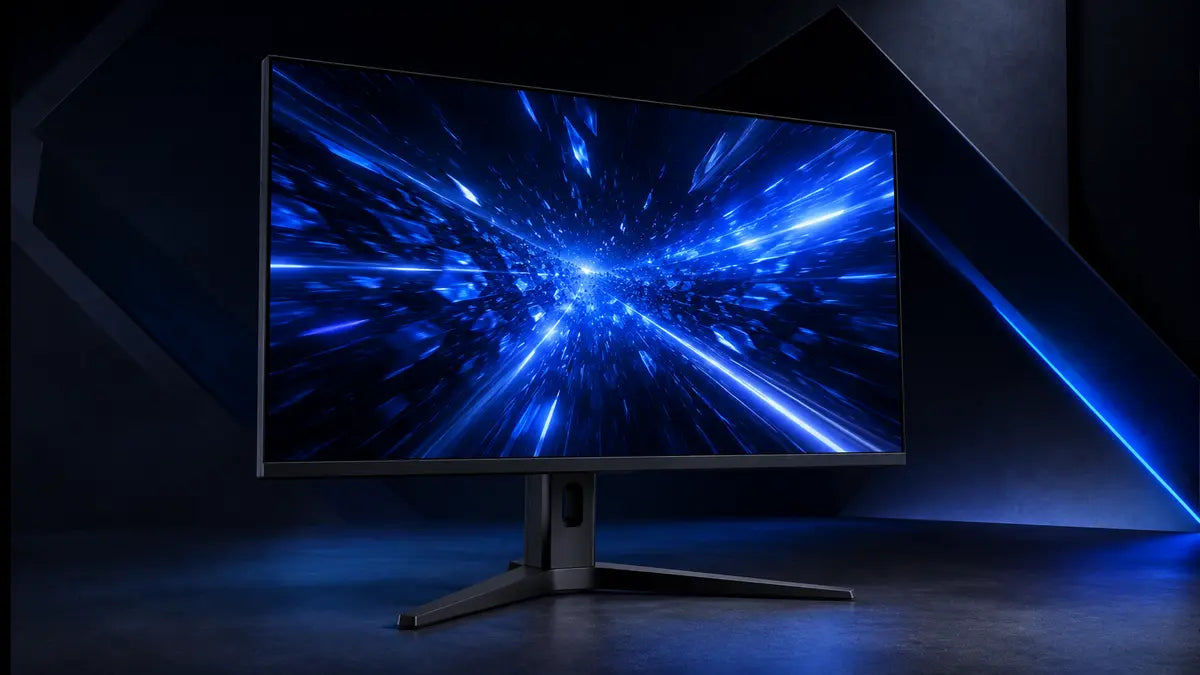
A gaming monitor determines how the performance of your PC reaches your eyes. Resolution controls image detail and GPU workload, refresh rate controls how often the display can update, while panel behavior, adaptive sync, HDR, size, ports and ergonomics determine the complete experience. The right choice starts with the games you play and the graphics card that must drive the display.
The four decisions that shape the monitor
Resolution
Higher resolution sharpens the image but increases the number of pixels the GPU must render.
Refresh rate
A higher rate can make motion feel smoother when the system produces enough frames.
Panel behavior
Contrast, motion clarity, viewing angles, brightness and pixel response vary by panel and exact model.
The fourth decision is size and viewing distance. A specification that looks ideal on paper can feel uncomfortable if the screen is too large for the desk or too small for the resolution.
Pixels and size1080p vs 1440p vs 4K
| Resolution | Common pairing | Best fit |
|---|---|---|
| 1920 × 1080 | About 24 inches | Value builds, esports and very high frame-rate targets. |
| 2560 × 1440 | About 27 inches | Strong balance of sharpness, performance and screen size for PC gaming. |
| 3840 × 2160 | About 27–32 inches | High detail, premium single-player gaming and productivity with a capable GPU. |
| Ultrawide | Varies by resolution and aspect ratio | Immersion, simulation and wide desktop workflows when games support it well. |
Resolution affects GPU demand far more than screen size. A 32-inch 1440p monitor and a 27-inch 1440p monitor ask the GPU to render the same number of pixels, though sharpness per inch differs.
Before choosing 4K or ultrawide, review your graphics card’s performance in the games you actually play. Our GPU guide explains resolution, VRAM and performance planning.
Motion smoothnessHow much refresh rate do you need?
| Refresh range | Typical use | What to remember |
|---|---|---|
| 60–100 Hz | Everyday use, productivity and casual gaming | 100 Hz can already feel meaningfully smoother than a basic 60 Hz display. |
| 120–180 Hz | Balanced modern gaming | A strong target for action games when the GPU can deliver matching frame rates. |
| 200–280 Hz | Competitive gaming | Benefits become more dependent on game performance, response behavior and player sensitivity. |
| 360 Hz+ | Specialized esports setups | Requires very high, stable frame rates and often prioritizes speed over resolution or price. |
A high refresh rate remains useful below its maximum when adaptive sync is active. You do not need to hold exactly the panel’s rated refresh rate at every moment, but the experience is best when frame rate stays inside the monitor’s effective variable-refresh range.
Real motion performanceResponse time, input lag and overdrive
Response time describes how quickly pixels transition between colors. Input lag describes delay through the display’s processing path. They are different measurements. Marketing claims such as “1 ms” may use different test methods and do not describe every transition, overshoot artifact or refresh-rate setting.
Look for full transition testing
Credible reviews show average response, slow transitions, overshoot and the best overdrive mode across refresh rates.
Low input lag matters
Game mode can reduce unnecessary image processing, but exact behavior varies by model and input.
Aggressive settings can create bright or dark inverse ghosting. Choose the cleanest motion mode for the refresh rate you use.
IPS vs VA vs OLED
| Panel type | Strengths | Trade-offs |
|---|---|---|
| IPS | Strong viewing angles, broad color options and many fast gaming models. | Typical contrast is lower than VA or OLED; glow can be visible in dark scenes. |
| VA | Higher native contrast than typical IPS and deep-looking dark scenes. | Some models have slower dark transitions; exact motion performance varies greatly. |
| OLED | Near-instant pixel response, true blacks and excellent per-pixel contrast. | Higher price, brightness behavior and long-term image-retention considerations require attention. |
Mini-LED is a backlight technology rather than a panel category. It can improve HDR contrast on compatible LCD monitors by using many local-dimming zones, but blooming and zone behavior vary by model.
Tear-free gamingAdaptive sync, FreeSync and G-SYNC compatibility
Variable refresh rate lets the monitor adjust its refresh timing to the frames delivered by the GPU, reducing visible tearing and uneven motion. Check the supported range, connection type and validation status. Low-frame-rate compensation can help when performance falls below the panel’s normal variable-refresh window.
What makes HDR actually look good?
An HDR input badge only confirms that the monitor can accept an HDR signal. Convincing HDR also needs strong peak brightness, deep blacks, effective local dimming or per-pixel control, useful color volume and correct tone mapping. Entry-level HDR support can still improve compatibility without producing a dramatic high-dynamic-range image.
Brightness
Highlights need enough luminance to stand apart from the rest of the image.
Black level
Local dimming or OLED control helps dark areas remain dark beside bright highlights.
Color volume
The display must preserve saturation across a useful range of brightness.
DisplayPort, HDMI and bandwidth
The port version, GPU output, cable and monitor input must all support the resolution, refresh rate, color depth and compression mode you want. A monitor may reach its maximum specification only through one particular input. Review the manual rather than assuming every HDMI or DisplayPort connection behaves identically.
Ergonomics, coating and everyday features
Height, tilt, swivel and VESA support can matter more every day than a small difference in peak specifications. Also consider anti-glare coating, text clarity, subpixel layout, on-screen controls, KVM or USB hub support, built-in audio and the warranty terms relevant to the panel technology.
Eight-step decisionHow to choose a gaming monitor
Choose the games and use cases
Competitive play, cinematic games and content creation prioritize different strengths.
Match resolution to the GPU
Use benchmarks for your actual games and quality targets.
Pick the size and viewing distance
Balance desk depth, sharpness and field of view.
Select a useful refresh target
Choose a range the system can use, not only the largest number available.
Compare tested motion performance
Review response times, overshoot and input lag across refresh rates.
Choose panel strengths
Prioritize contrast, viewing angles, HDR, speed or productivity as needed.
Verify ports and VRR
Confirm the exact input reaches the target mode with your GPU or console.
Check ergonomics and warranty
Stand adjustment, VESA support and coverage affect long-term satisfaction.
Shop by resolution, size, refresh rate, panel features and connectivity.
View monitors →Related guideChoose the right graphics cardMatch GPU performance and VRAM to the monitor resolution you want.
Read the GPU guide →Build guideBuild a complete gaming PCPlan compatible hardware, assembly, BIOS setup and first boot.
Read the build guide →Gaming monitor FAQ
Is 1440p the best resolution for gaming?
It is a strong balance for many 27-inch PC setups, but 1080p can be better for high-FPS value builds and 4K for maximum detail with a capable GPU.
Can I use a 240 Hz monitor at 144 FPS?
Yes. Adaptive sync can match refresh timing to changing frame rates inside the supported range, and the display can still offer low latency and useful headroom.
Is OLED always better than IPS?
OLED leads in black level and pixel response, while IPS can offer lower cost, strong brightness options and no OLED-specific image-retention concern. The best choice depends on use and environment.
Does 1 ms mean there is no input lag?
No. The claim usually refers to a pixel-response method, while input lag measures signal delay. Both require independent testing.
Do I need HDR for gaming?
No, but well-implemented HDR can add brighter highlights, deeper contrast and richer color. Basic HDR compatibility alone does not guarantee a dramatic result.
Should I use HDMI or DisplayPort on PC?
Use the connection that supports the target resolution, refresh rate, color mode and adaptive sync on your exact GPU and monitor. Either can be correct.
Match the monitor to the frames your PC can deliver
Choose resolution first, then balance refresh rate, tested motion performance, contrast, HDR and connectivity around your real games and desk.